Xero OCR Integration: Automate Invoice Processing
Xero OCR integration automates invoice processing, reduces costs 78%, eliminates manual data entry for accounting.
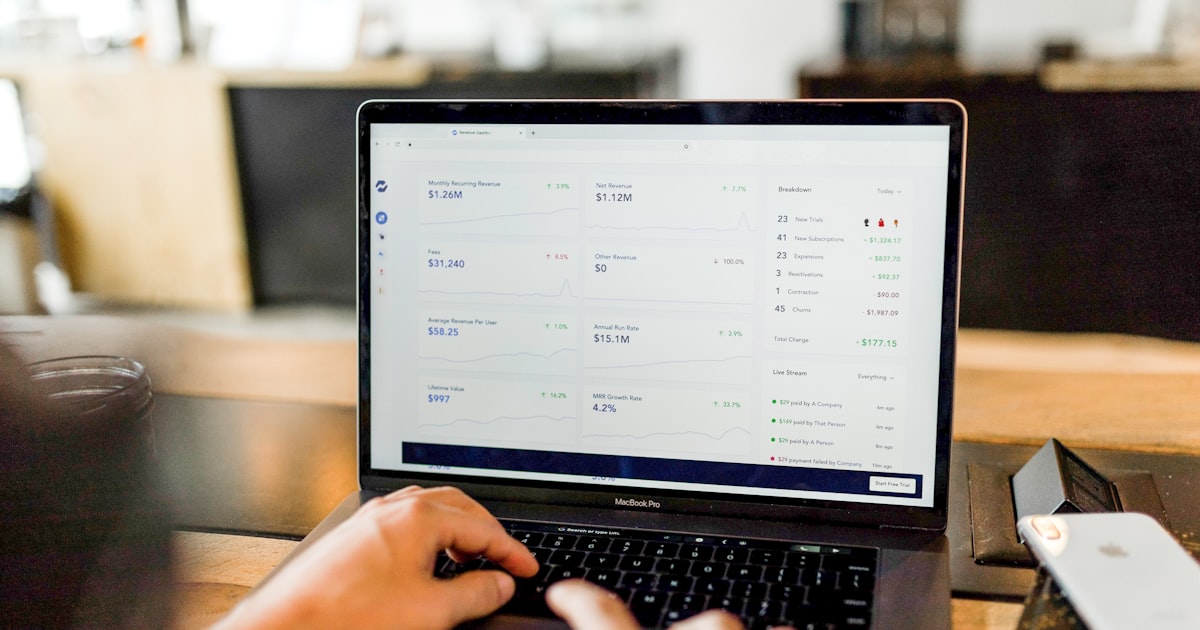
Your accounting team spends 10+ days per month manually entering invoice data into Xero. Every supplier bill, expense receipt, and purchase order requires someone to open the PDF, read the details, and type them into your accounting system—one field at a time. This manual process costs your business $12.88 per invoice and introduces error rates as high as 4%.
There's a better way. Xero OCR integration with Scanny AI eliminates manual data entry entirely, reducing invoice processing costs to $2.78 per invoice while cutting processing time from 10+ days to under 3 days. This isn't just about saving time—it's about transforming your accounts payable workflow into a competitive advantage.
In this comprehensive guide, you'll learn how to implement intelligent OCR automation for Xero, complete with technical implementation details, JSON schema examples, and real-world workflow configurations.
The True Cost of Manual Invoice Processing in Xero
Before we dive into the solution, let's quantify the problem. Here's what manual invoice entry actually costs your business:
| Metric | Manual Entry (Traditional) | Scanny AI + Xero (Automated) |
|---|---|---|
| Processing Time | 10-15 days per invoice cycle | 2-3 days per invoice cycle |
| Cost Per Invoice | $12.88 | $2.78 |
| Error Rate | 3-4% (human error) | <0.5% (AI validation) |
| Staff Hours | 40+ hours/month | 5-8 hours/month (exceptions only) |
| Late Payment Fees | $500-2,000/month (missed deadlines) | Near zero (automated workflows) |
| Scalability | Linear (hire more staff) | Exponential (process 1,000+ invoices) |
Real Impact: A mid-sized company processing 500 invoices per month saves $60,600 annually by switching from manual entry to OCR automation with Xero integration.
The hidden costs are even more significant: staff burnout from repetitive tasks, delayed financial reporting, poor cash flow visibility, and missed early payment discounts worth 2-3% of invoice value.

What Is Xero OCR Integration?
Xero OCR integration combines optical character recognition (OCR) technology with Xero's accounting API to automatically extract data from invoices, bills, receipts, and purchase orders—then push that structured data directly into your Xero account without manual intervention.
Traditional Xero Workflow (Manual)
- Receive invoice via email or paper
- Download/scan the document
- Open Xero in browser
- Navigate to Bills → New Bill
- Manually type: supplier name, invoice number, date, line items, amounts, tax codes
- Attach PDF to bill entry
- Save and code to appropriate accounts
- Route for approval
- Schedule payment
Time: 8-12 minutes per invoice Error-prone steps: 9 manual touchpoints
Automated Xero OCR Workflow (Scanny AI)
- Invoice arrives in email or Google Drive/OneDrive
- Scanny AI automatically detects new document
- OCR engine extracts all data (supplier, amounts, line items, tax)
- JSON schema validation ensures data quality
- Xero API creates bill entry automatically
- Approval workflow triggers (if configured)
- Notification sent to finance team for exceptions only
Time: 30 seconds per invoice Manual touchpoints: 0 (except exceptions)
How Scanny AI's Xero OCR Integration Works
Scanny AI uses Google Gemini Vision API for OCR processing, which provides superior accuracy for complex layouts, multi-language documents, and handwritten text compared to traditional OCR engines.
Architecture Overview
┌─────────────────────────────────────────────────────────────────┐
│  INPUT SOURCES                                                   │
│  • Email (Gmail, Outlook)                                        │
│  • Cloud Storage (Google Drive, OneDrive, Dropbox)              │
│  • Direct Upload (API, Web Interface)                           │
│  • Scanner Integration (physical mail)                          │
└──────────────────────┬──────────────────────────────────────────┘
                       │
                       ▼
┌─────────────────────────────────────────────────────────────────┐
│  SCANNY AI OCR PROCESSING                                        │
│  ┌──────────────────────────────────────────────────────────┐  │
│  │  Document Classification                                  │  │
│  │  • Identifies document type (invoice, receipt, PO, bill)  │  │
│  │  • Selects appropriate extraction schema                  │  │
│  └──────────────────────────────────────────────────────────┘  │
│  ┌──────────────────────────────────────────────────────────┐  │
│  │  Gemini Vision OCR                                        │  │
│  │  • Extracts all text + metadata                           │  │
│  │  • Handles multi-page documents                           │  │
│  │  • Processes tables (line items)                          │  │
│  │  • Normalizes dates, currencies, numbers                  │  │
│  └──────────────────────────────────────────────────────────┘  │
│  ┌──────────────────────────────────────────────────────────┐  │
│  │  JSON Schema Validation                                   │  │
│  │  • Validates required fields                              │  │
│  │  • Calculates totals (subtotal + tax = total)             │  │
│  │  • Flags confidence scores                                │  │
│  └──────────────────────────────────────────────────────────┘  │
└──────────────────────┬──────────────────────────────────────────┘
                       │
                       ▼
┌─────────────────────────────────────────────────────────────────┐
│  XERO API INTEGRATION                                            │
│  ┌──────────────────────────────────────────────────────────┐  │
│  │  Bill/Invoice Creation                                    │  │
│  │  • POST /api.xro/2.0/Invoices                             │  │
│  │  • Maps extracted data to Xero fields                     │  │
│  │  • Attaches original document (History & Notes)           │  │
│  └──────────────────────────────────────────────────────────┘  │
│  ┌──────────────────────────────────────────────────────────┐  │
│  │  Contact/Supplier Matching                                │  │
│  │  • GET /api.xro/2.0/Contacts                              │  │
│  │  • Fuzzy match supplier name                              │  │
│  │  • Creates new contact if needed                          │  │
│  └──────────────────────────────────────────────────────────┘  │
│  ┌──────────────────────────────────────────────────────────┐  │
│  │  Account Code Assignment                                  │  │
│  │  • Maps line items to chart of accounts                   │  │
│  │  • Uses ML-based categorization                           │  │
│  │  • Learns from past coding decisions                      │  │
│  └──────────────────────────────────────────────────────────┘  │
└──────────────────────┬──────────────────────────────────────────┘
                       │
                       ▼
┌─────────────────────────────────────────────────────────────────┐
│  OUTPUT & WORKFLOW ACTIONS                                       │
│  • Bill created in Xero (Draft or Awaiting Approval status)     │
│  • Notification sent to approval chain                          │
│  • Exception queue (low confidence items)                       │
│  • Audit trail logged                                           │
│  • Analytics updated (processing time, cost per invoice)        │
└─────────────────────────────────────────────────────────────────┘
Technical Implementation: JSON Schema for Xero Invoices
Scanny AI uses custom JSON schemas to define exactly what data to extract from each document type. Here's the schema for supplier invoices that integrate with Xero:
{
  "documentType": "supplier_invoice",
  "fields": [
    {
      "name": "supplier_name",
      "type": "string",
      "required": true,
      "xero_mapping": "Contact.Name"
    },
    {
      "name": "supplier_abn",
      "type": "string",
      "required": false,
      "xero_mapping": "Contact.TaxNumber"
    },
    {
      "name": "invoice_number",
      "type": "string",
      "required": true,
      "xero_mapping": "InvoiceNumber"
    },
    {
      "name": "invoice_date",
      "type": "date",
      "format": "YYYY-MM-DD",
      "required": true,
      "xero_mapping": "Date"
    },
    {
      "name": "due_date",
      "type": "date",
      "format": "YYYY-MM-DD",
      "required": true,
      "xero_mapping": "DueDate"
    },
    {
      "name": "currency",
      "type": "string",
      "default": "USD",
      "xero_mapping": "CurrencyCode"
    },
    {
      "name": "line_items",
      "type": "array",
      "required": true,
      "xero_mapping": "LineItems",
      "schema": {
        "description": "string",
        "quantity": "number",
        "unit_price": "number",
        "account_code": "string",
        "tax_type": "string",
        "line_amount": "number"
      }
    },
    {
      "name": "subtotal",
      "type": "number",
      "required": true,
      "xero_mapping": "SubTotal"
    },
    {
      "name": "tax_amount",
      "type": "number",
      "required": true,
      "xero_mapping": "TotalTax"
    },
    {
      "name": "total_amount",
      "type": "number",
      "required": true,
      "xero_mapping": "Total",
      "validation": "subtotal + tax_amount = total_amount"
    },
    {
      "name": "payment_terms",
      "type": "string",
      "required": false,
      "xero_mapping": "Reference"
    },
    {
      "name": "purchase_order_number",
      "type": "string",
      "required": false,
      "xero_mapping": "Reference"
    }
  ],
  "validation_rules": [
    {
      "rule": "total_must_equal_sum",
      "formula": "subtotal + tax_amount === total_amount",
      "tolerance": 0.01
    },
    {
      "rule": "date_logic",
      "formula": "due_date >= invoice_date"
    },
    {
      "rule": "line_items_sum",
      "formula": "SUM(line_items.line_amount) === subtotal"
    }
  ],
  "confidence_thresholds": {
    "auto_approve": 0.95,
    "manual_review": 0.75,
    "reject": 0.50
  }
}
This schema ensures that extracted data matches Xero's API requirements exactly. The xero_mapping field defines which Xero API field each extracted value corresponds to.
Sample Extracted JSON Output
Here's what the OCR engine returns after processing an invoice:
{
  "success": true,
  "document_id": "doc_8x7k2p9m",
  "confidence_score": 0.97,
  "extracted_data": {
    "supplier_name": "Acme Office Supplies",
    "supplier_abn": "51 824 753 556",
    "invoice_number": "INV-2025-00847",
    "invoice_date": "2025-01-15",
    "due_date": "2025-02-14",
    "currency": "USD",
    "line_items": [
      {
        "description": "A4 Copy Paper - 10 Reams",
        "quantity": 10,
        "unit_price": 24.99,
        "account_code": "400",
        "tax_type": "TAX001",
        "line_amount": 249.90
      },
      {
        "description": "Stapler Heavy Duty",
        "quantity": 5,
        "unit_price": 18.50,
        "account_code": "400",
        "tax_type": "TAX001",
        "line_amount": 92.50
      }
    ],
    "subtotal": 342.40,
    "tax_amount": 34.24,
    "total_amount": 376.64,
    "payment_terms": "Net 30",
    "purchase_order_number": "PO-2025-0156"
  },
  "validation_passed": true,
  "xero_sync_status": "pending"
}
Notice the confidence score of 0.97—this exceeds the auto_approve threshold (0.95), so the invoice will be automatically pushed to Xero without manual review.

Step-by-Step: Setting Up Xero OCR Integration
Prerequisites
- Xero Account with API access (available on all plans)
- Scanny AI Account (Start your free trial)
- OAuth 2.0 Credentials from Xero Developer Portal
- Webhook URL (optional, for real-time sync)
Configuration Steps
Step 1: Connect Xero to Scanny AI
- Log in to your Scanny AI dashboard at Scanny AI
- Navigate to Integrations → Accounting Software
- Click Connect Xero
- Authorize Scanny AI to access your Xero organization
- Select the Xero organization to sync (if you have multiple)
- Configure sync settings:
- Bill Status: Draft or Awaiting Approval
- Auto-match Contacts: Enabled (recommended)
- Create New Contacts: Enabled
- Default Account Code: 400 (Expenses)
- Tax Type Mapping: Map OCR tax values to Xero tax codes
Step 2: Create Document Type Schema
- In Scanny AI, go to Document Types → New Document Type
- Name: "Supplier Invoice - Xero"
- Upload sample invoices (3-5 examples from your actual suppliers)
- Let Scanny AI auto-generate the schema, or use the JSON example above
- Critical: Map each field to its Xero API equivalent using the
xero_mappingparameter - Test extraction with a real invoice
- Adjust confidence thresholds based on your risk tolerance
Step 3: Configure Input Sources
Option A: Email Forwarding
- Forward invoices to:
invoices-[your-workspace-id]@scanny.ai - Scanny AI automatically processes all attachments
- Works with Gmail, Outlook, any email client
Option B: Google Drive Integration
- Connect your Google Drive account
- Select folder(s) to monitor (e.g., "Supplier Invoices")
- Scanny AI processes new files automatically
Option C: OneDrive Integration
- Connect your Microsoft 365 account
- Select SharePoint folder or OneDrive path
- Automatic sync every 5 minutes
Option D: API Upload
- Use Scanny API to upload documents programmatically
- Ideal for ERP integration or custom workflows
Step 4: Set Up Approval Workflow (Optional)
For added control, configure approval rules:
// Approval Logic Example
{
  "workflow_name": "Invoice Approval - Xero",
  "trigger": "document_processed",
  "conditions": [
    {
      "if": "confidence_score >= 0.95 AND total_amount <= 500",
      "then": "auto_approve_and_sync_to_xero"
    },
    {
      "if": "confidence_score >= 0.85 AND total_amount <= 2000",
      "then": "send_to_manager_approval"
    },
    {
      "if": "confidence_score < 0.85 OR total_amount > 2000",
      "then": "send_to_finance_team_review"
    }
  ],
  "approval_chain": [
    {
      "role": "Department Manager",
      "approve_limit": 2000,
      "escalate_after_hours": 24
    },
    {
      "role": "Finance Director",
      "approve_limit": 10000,
      "escalate_after_hours": 48
    }
  ],
  "notifications": {
    "email": true,
    "slack": true,
    "sms": false
  }
}
This workflow ensures high-value or low-confidence invoices get human review before syncing to Xero.
Step 5: Test and Deploy
- Upload 10 test invoices from different suppliers
- Verify extracted data accuracy
- Check Xero bills are created correctly
- Validate account codes and tax types
- Test approval workflow (if configured)
- Monitor processing speed and costs in Scanny dashboard
- Roll out to entire accounts payable team
Advanced Use Cases for Xero OCR Integration
Multi-Entity Accounting
If you manage multiple companies in Xero, Scanny AI can route invoices to the correct organization automatically:
{
  "routing_rules": [
    {
      "condition": "supplier_name CONTAINS 'Australia'",
      "xero_org_id": "xero-org-au-123456"
    },
    {
      "condition": "supplier_name CONTAINS 'UK' OR currency = 'GBP'",
      "xero_org_id": "xero-org-uk-789012"
    },
    {
      "default": "xero-org-us-345678"
    }
  ]
}
Purchase Order Matching
Scanny AI can match incoming invoices against open purchase orders in Xero:
- Extract PO number from invoice
- Query Xero API for matching PO:
GET /api.xro/2.0/PurchaseOrders/{PurchaseOrderID} - Validate line items match (quantity, price)
- Flag discrepancies (e.g., price increase, quantity mismatch)
- Auto-approve if match is exact
Expense Receipt Processing
Process employee expense receipts and create Xero Expense Claims:
{
  "documentType": "expense_receipt",
  "xero_endpoint": "/api.xro/2.0/ExpenseClaims",
  "fields": [
    {
      "name": "employee_email",
      "xero_mapping": "User.EmailAddress"
    },
    {
      "name": "merchant_name",
      "xero_mapping": "Receipts.Contact.Name"
    },
    {
      "name": "receipt_date",
      "xero_mapping": "Receipts.Date"
    },
    {
      "name": "total_amount",
      "xero_mapping": "Receipts.Total"
    },
    {
      "name": "expense_category",
      "xero_mapping": "Receipts.LineItems.AccountCode"
    }
  ]
}
Multi-Language Invoice Processing
Scanny AI's Gemini Vision OCR handles 100+ languages. For international suppliers:
- Automatically detects document language
- Extracts text in original language
- Translates supplier name to English for Xero contact matching
- Preserves original invoice text in
Referencefield - Normalizes currency codes (EUR, GBP, AUD → Xero currency codes)
Security & Compliance for Xero Integration
Data Security
- Encryption: All documents encrypted at rest (AES-256) and in transit (TLS 1.3)
- Access Control: Role-based permissions (RBAC) for team members
- Audit Logs: Complete history of who accessed/modified each document
- Data Retention: Configurable (default: 7 years for tax compliance)
- GDPR Compliant: Data processing agreements available
Xero OAuth 2.0 Security
- No password storage: Uses OAuth 2.0 with refresh tokens
- Token expiry: Refresh tokens expire after 60 days of inactivity
- Scope limitation: Scanny AI requests minimal Xero API scopes:
accounting.transactions(read/write bills and invoices)accounting.contacts(read/write suppliers)accounting.attachments(attach PDFs to bills)
Compliance Certifications
- SOC 2 Type II certified
- ISO 27001 compliant
- GDPR compliant (EU data residency available)
- HIPAA compliance for healthcare organizations (enterprise plan)
Pricing & ROI Calculation
Scanny AI Pricing for Xero Integration
- Starter Plan: $99/month - 500 documents
- Professional Plan: $299/month - 2,000 documents
- Enterprise Plan: Custom pricing - Unlimited documents + SLA
ROI Example: 500 Invoices/Month
Before Automation (Manual Entry):
- Processing cost: 500 invoices × $12.88 = $6,440/month
- Staff time: 83 hours/month (500 invoices × 10 minutes)
- Late fees: ~$800/month (missed deadlines)
- Total Cost: $7,240/month
After Automation (Scanny AI + Xero):
- Scanny AI subscription: $299/month
- Processing cost: 500 invoices × $2.78 = $1,390/month
- Staff time: 8 hours/month (exceptions only)
- Late fees: ~$0/month (automated workflows)
- Total Cost: $1,689/month
Monthly Savings: $5,551 Annual Savings: $66,612 ROI: 1,950% in first year
Key Insight: The automation pays for itself in the first month. Every subsequent month is pure savings plus time reallocation to higher-value finance work.
Common Implementation Challenges & Solutions
Challenge 1: Supplier Name Variations
Problem: Same supplier appears as "ABC Corp", "ABC Corporation", "ABC Corp Pty Ltd"
Solution:
// Fuzzy matching algorithm
{
  "contact_matching": {
    "algorithm": "levenshtein_distance",
    "threshold": 0.85,
    "ignore_legal_suffixes": ["Pty Ltd", "LLC", "Inc", "Corporation", "Corp"],
    "manual_mapping": {
      "ABC Corp": "contact_id_12345",
      "ABC Corporation": "contact_id_12345"
    }
  }
}
Challenge 2: Complex Line Item Tables
Problem: Invoices with 20+ line items, nested tables, or discounts
Solution: Scanny AI's Gemini Vision OCR excels at complex tables. Enable table detection mode:
{
  "ocr_settings": {
    "table_detection": "enabled",
    "column_headers_required": true,
    "handle_merged_cells": true,
    "discount_handling": "separate_line_item"
  }
}
Challenge 3: Handwritten Invoices
Problem: Some suppliers still send handwritten quotes/invoices
Solution: Gemini Vision handles handwriting. Increase manual review threshold:
{
  "confidence_thresholds": {
    "handwritten_docs": {
      "auto_approve": 0.90,
      "manual_review": 0.70
    }
  }
}
Challenge 4: Account Code Assignment
Problem: Determining correct Xero account code for line items
Solution: Train Scanny AI's ML model with historical data:
- Export past 500 bills from Xero with account codes
- Upload to Scanny AI as training set
- ML model learns your coding patterns
- Accuracy improves from 70% → 95% after 1,000 invoices
Xero API Best Practices
Rate Limiting
Xero API has rate limits:
- 60 API calls per minute per app
- 5,000 API calls per day per organization
Scanny AI handles this automatically by:
- Batching requests (create multiple bills in one API call)
- Queuing during peak times
- Retry logic with exponential backoff
Webhook Configuration
For real-time sync, configure Xero webhooks:
// Xero Webhook Example
POST https://your-scanny-workspace.scanny.ai/webhooks/xero
{
  "events": [
    {
      "resourceId": "invoice_123",
      "eventType": "UPDATE",
      "eventDateUtc": "2025-01-15T14:30:00",
      "tenantId": "your-xero-org-id"
    }
  ]
}
This allows bi-directional sync:
- When finance team edits a bill in Xero, Scanny AI is notified
- Updates audit trail and prevents duplicate processing
Get Started with Xero OCR Automation Today
Manual invoice processing is costing your business thousands of dollars every month in direct costs, error correction, and missed opportunities. Xero OCR integration with Scanny AI transforms accounts payable from a cost center into a strategic advantage.
Next Steps
- Start your free trial - No credit card required, 100 free documents
- Connect your Xero account - OAuth setup takes 2 minutes
- Upload 10 test invoices - See accuracy for yourself
- Configure your workflow - Approval rules, notifications, account codes
- Go live - Roll out to your entire AP team
Get Help from Our Team
Need assistance with setup or have complex requirements?
- Live Chat: Available in dashboard 24/7
- Email Support: support@scanny.ai
- Book Demo: Schedule a technical walkthrough
- Documentation: Xero Integration Guide
Ready to eliminate manual invoice entry? Start your free trial and process your first 100 documents free—no credit card required.
Scanny AI is not affiliated with or endorsed by Xero Limited. Xero is a registered trademark of Xero Limited.